
Connect Youtube Channel
How to Connect your YouTube Channel to Revora
To start managing your YouTube comments directly from Revora, follow these simple steps to integrate your channel:
- Log in to your Revora account.
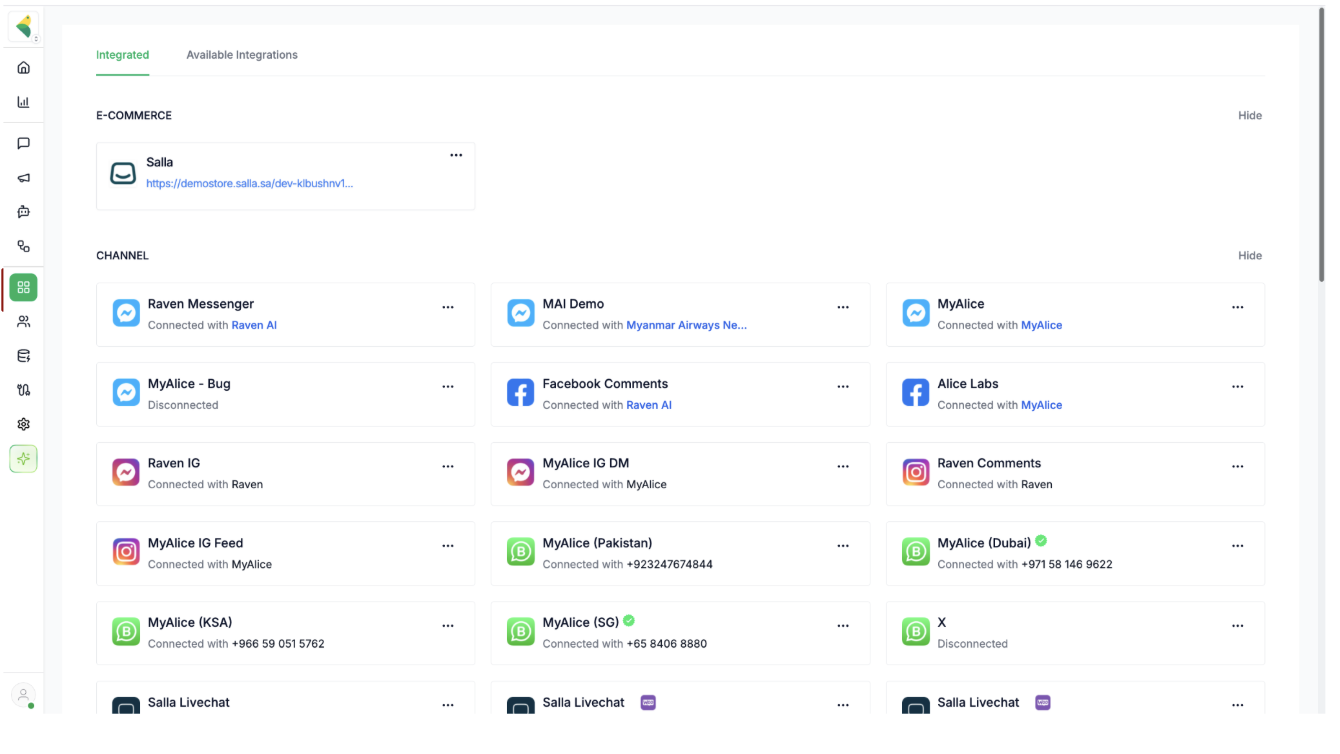
- From the dashboard, navigate to Integrations.

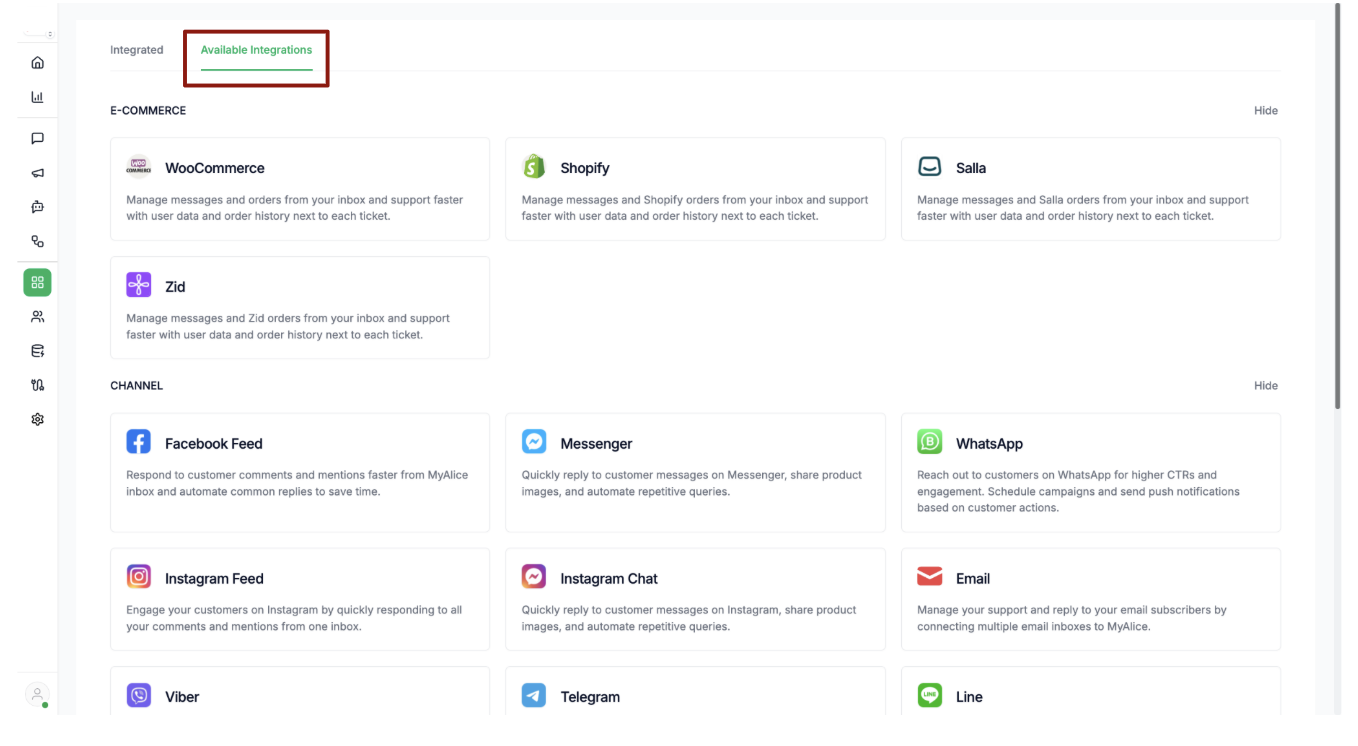
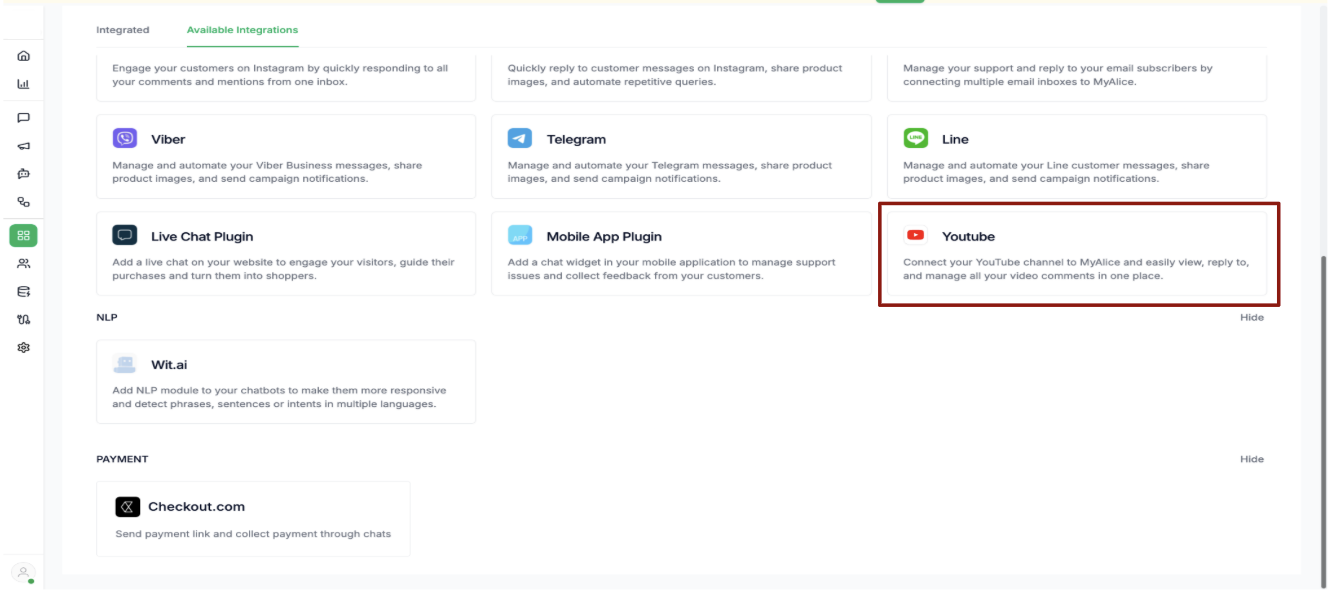
- Go to the Available Integrations tab and scroll down until you find YouTube.

- Click on YouTube, then select Next.
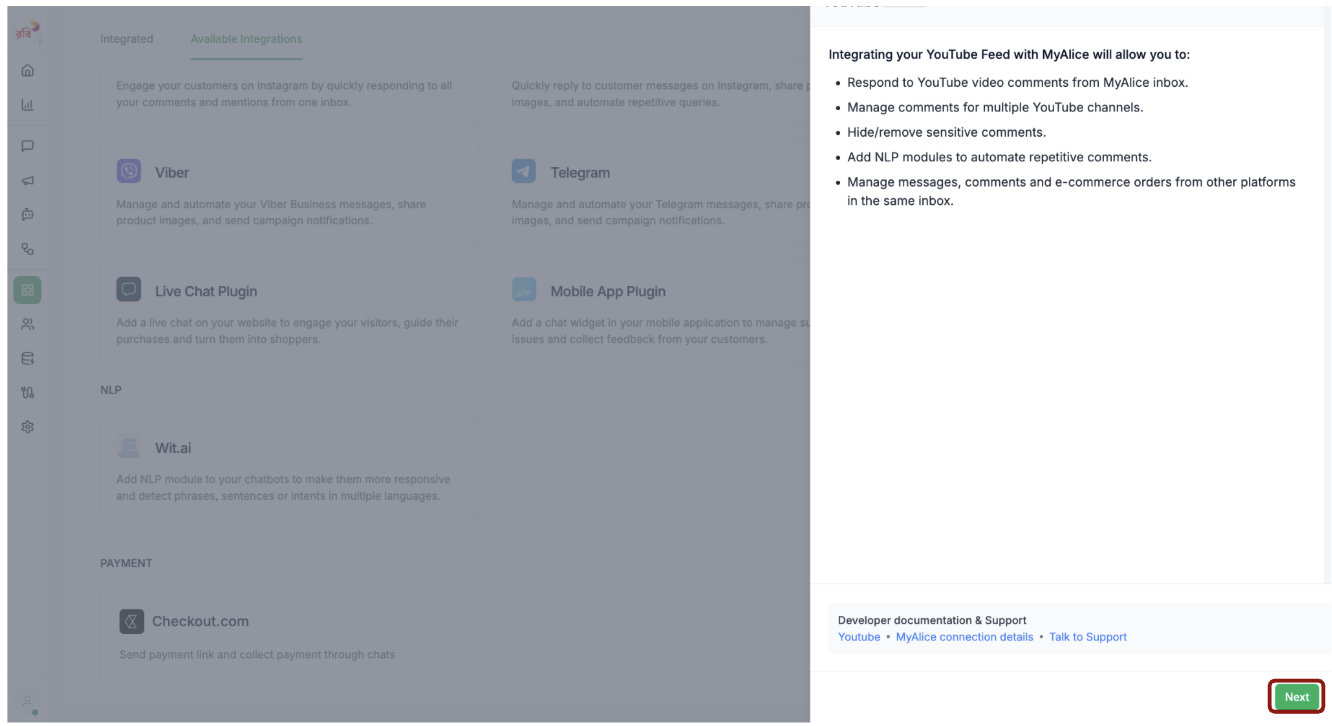
- On the following screen, click Continue with Google.

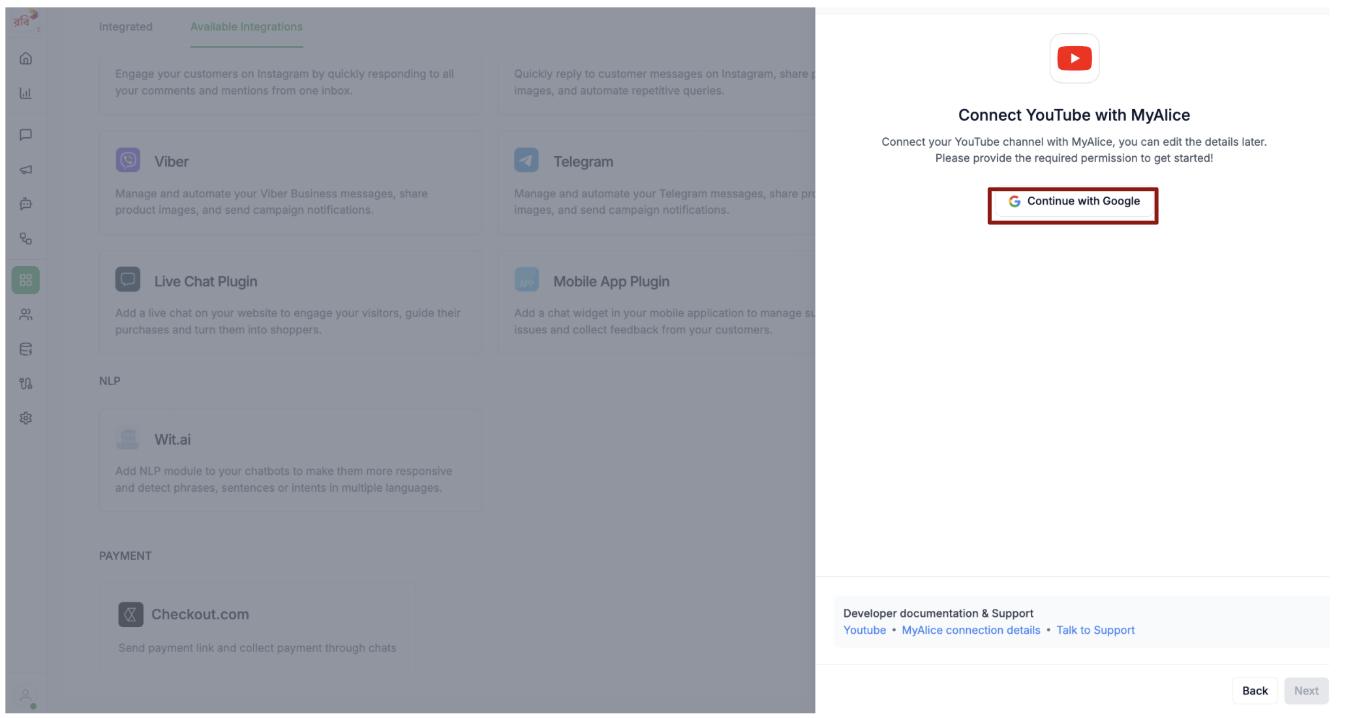
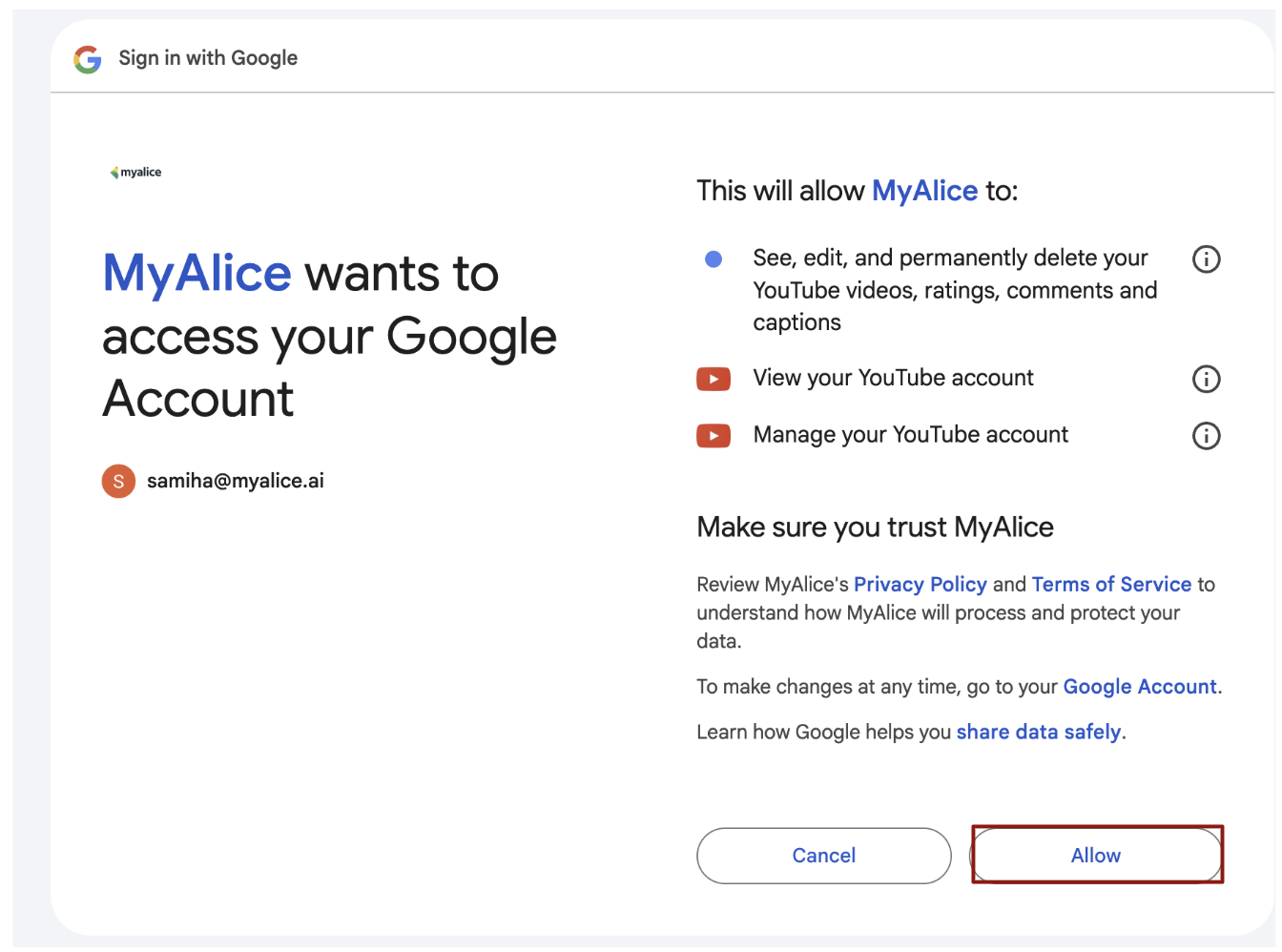
- Choose the Google account associated with the YouTube channel you’d like to connect. Choose the channel and then click on Sign in and click Allow to grant Revora the necessary permissions.
Note: If multiple YouTube channels are linked to the same email address, all available channels will be displayed during sign-in, allowing you to choose the one you want to connect.
.png)

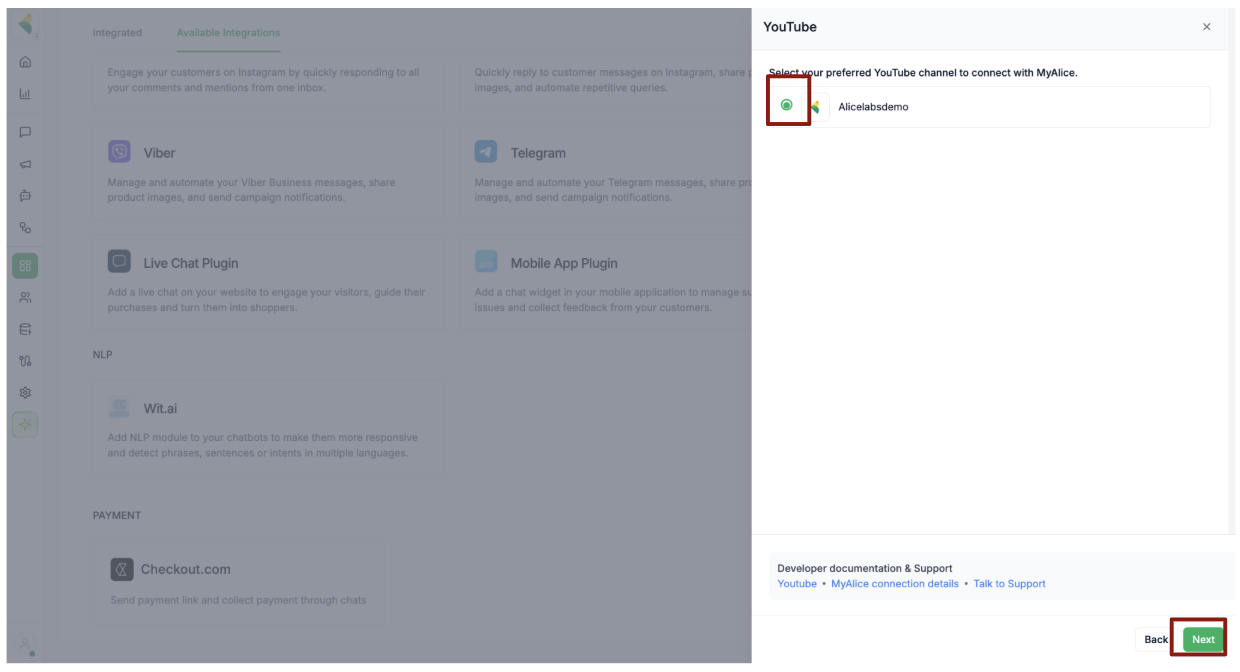
- Once your channel appears, select it and click Next.

- Enter a Channel Title — this is for internal use only and will be visible within your Revora dashboard.

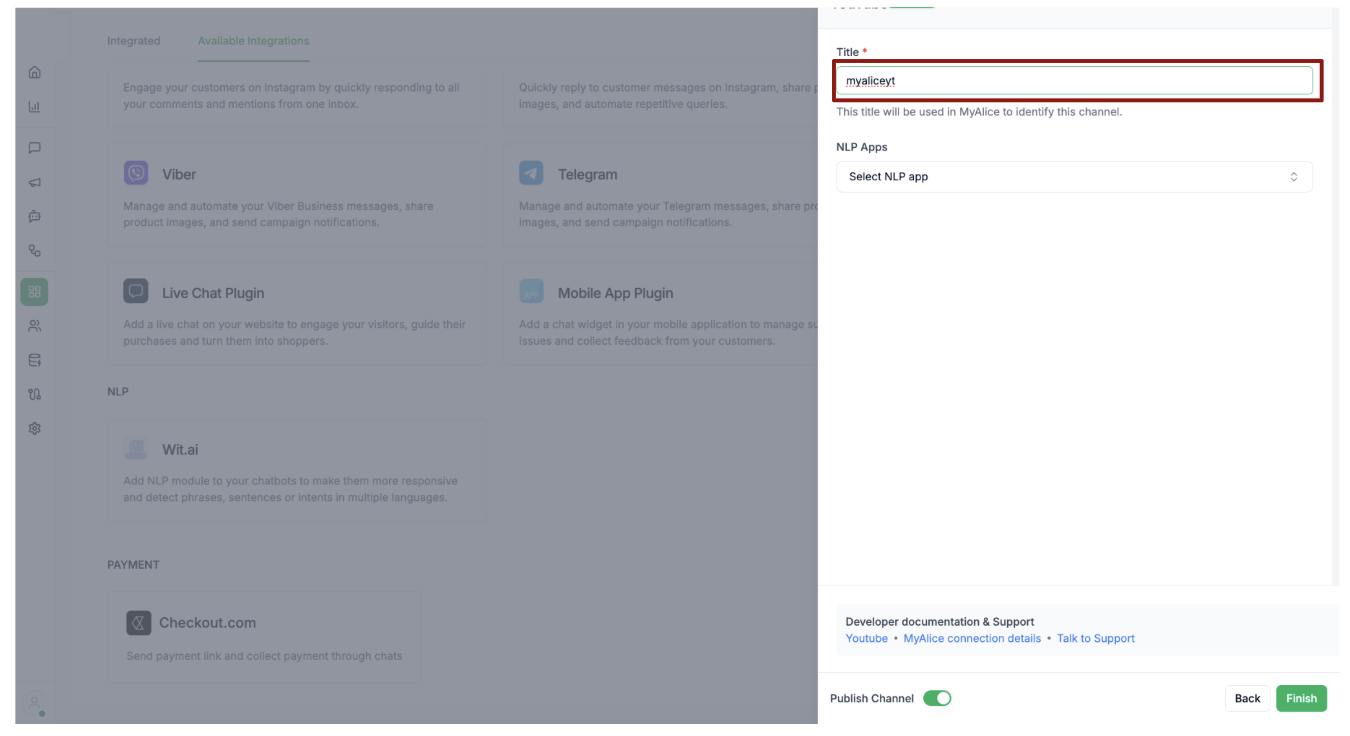
- Finally, click Finish to complete the integration.
.png)
- After clicking Finish, the selected YouTube channel will appear under the YouTube section within Integrated, confirming that the integration was successful.
.png)
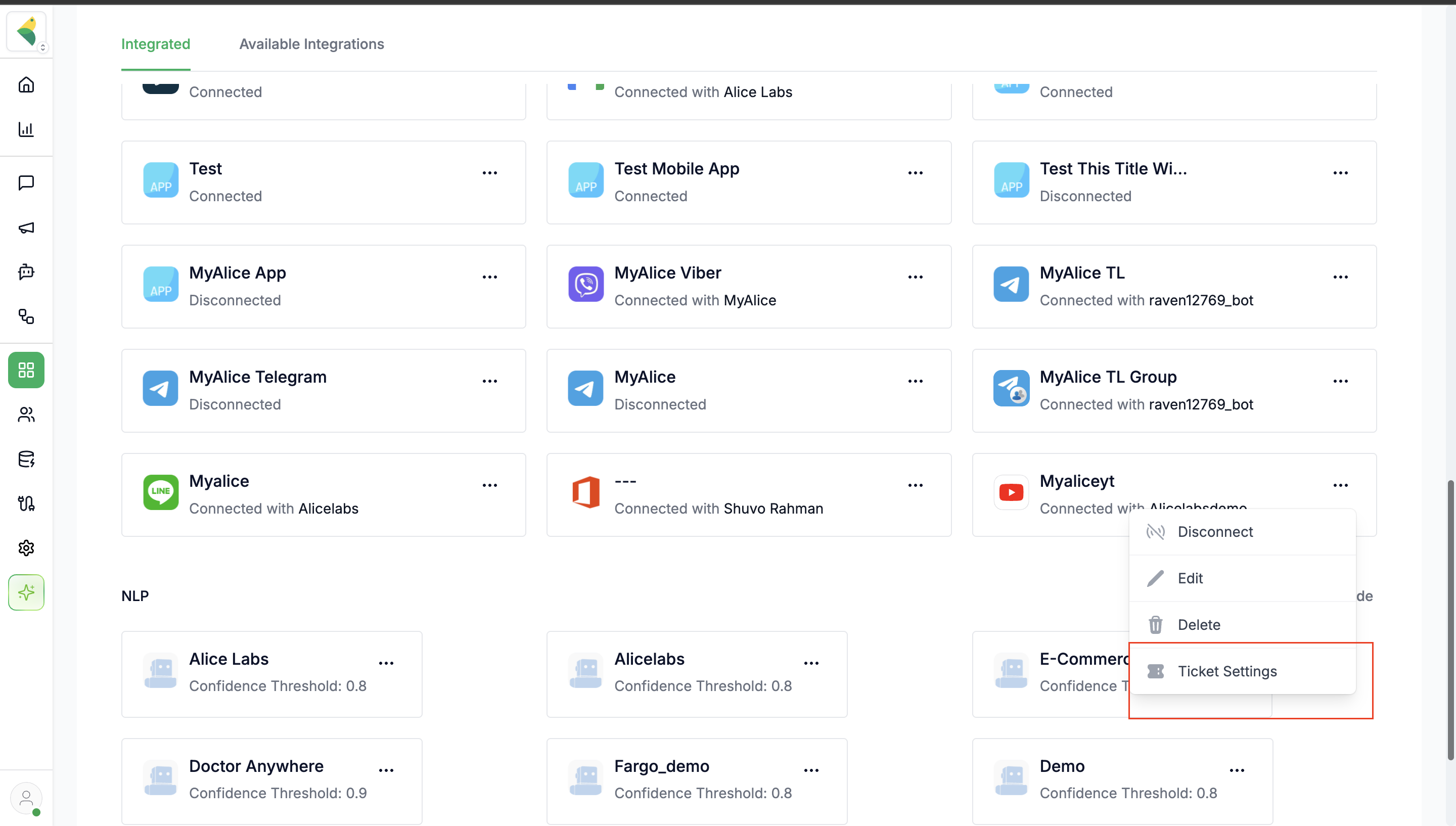
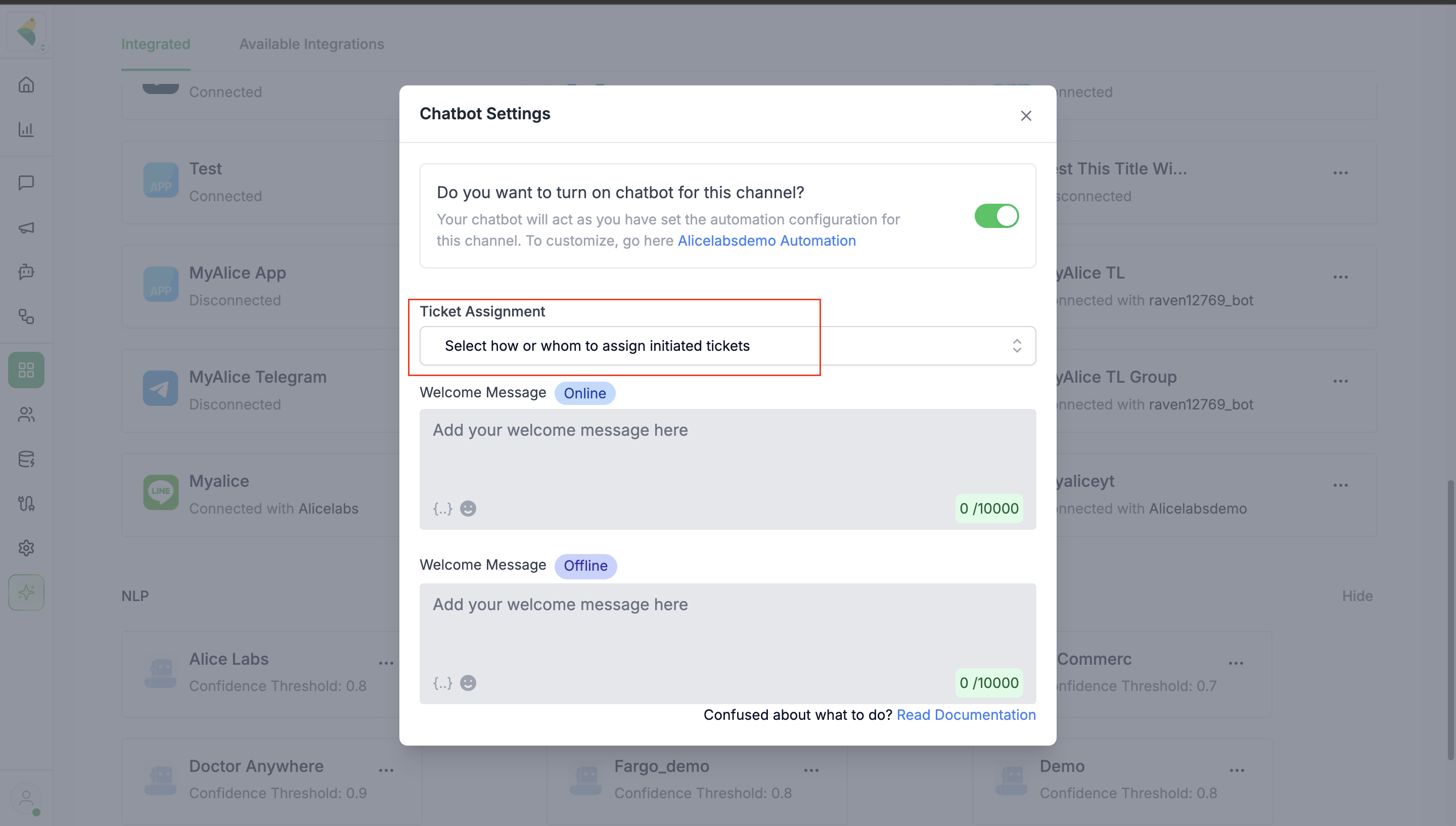
- To assign tickets coming from your Youtube channel, click on the three dots and select Ticket Settings. Then select the agent/group you want to assign to manage these tickets.