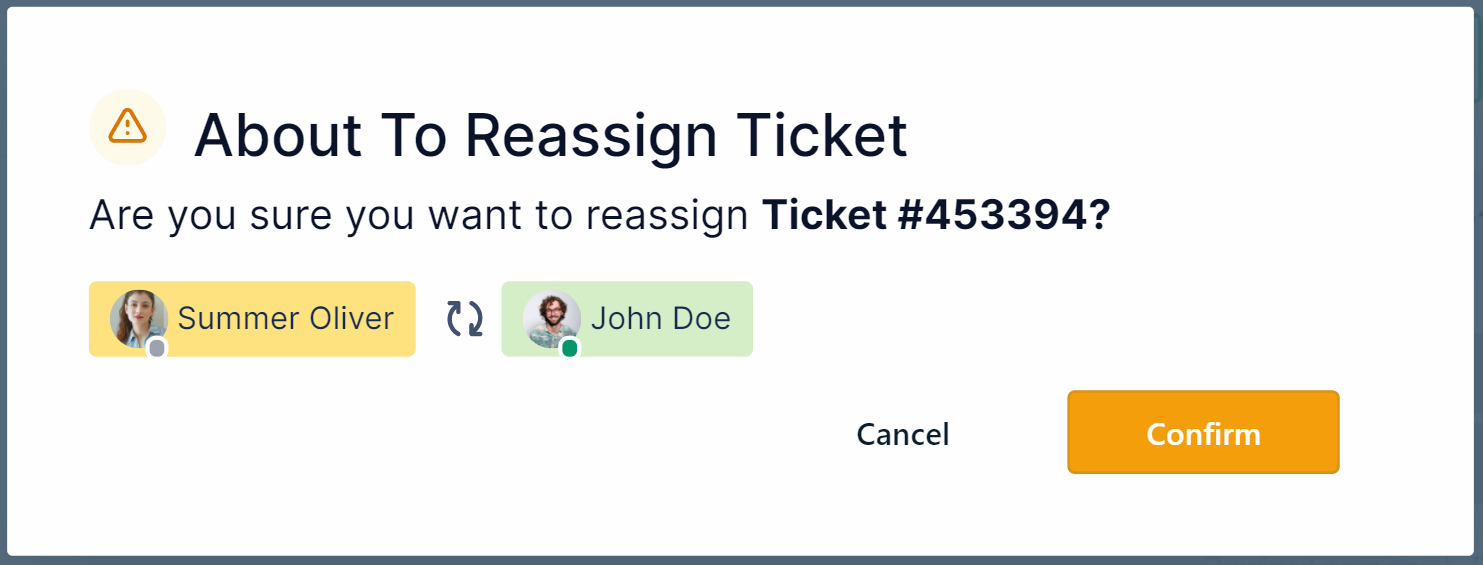


Assign a Ticket
Learn how to assign a ticket by default or manually, and reassign a ticket.
Ticket Assignment Rules
- Any agent in the team can reply to an unassigned ticket.
- No other agent or chatbot can respond to a ticket while the assigned agent manages the ticket.
Assign Automatically
Please refer to this page to learn in detail about Smart Ticket Assignment.
Assign a Ticket Manually
- Select a pending ticket in your inbox.
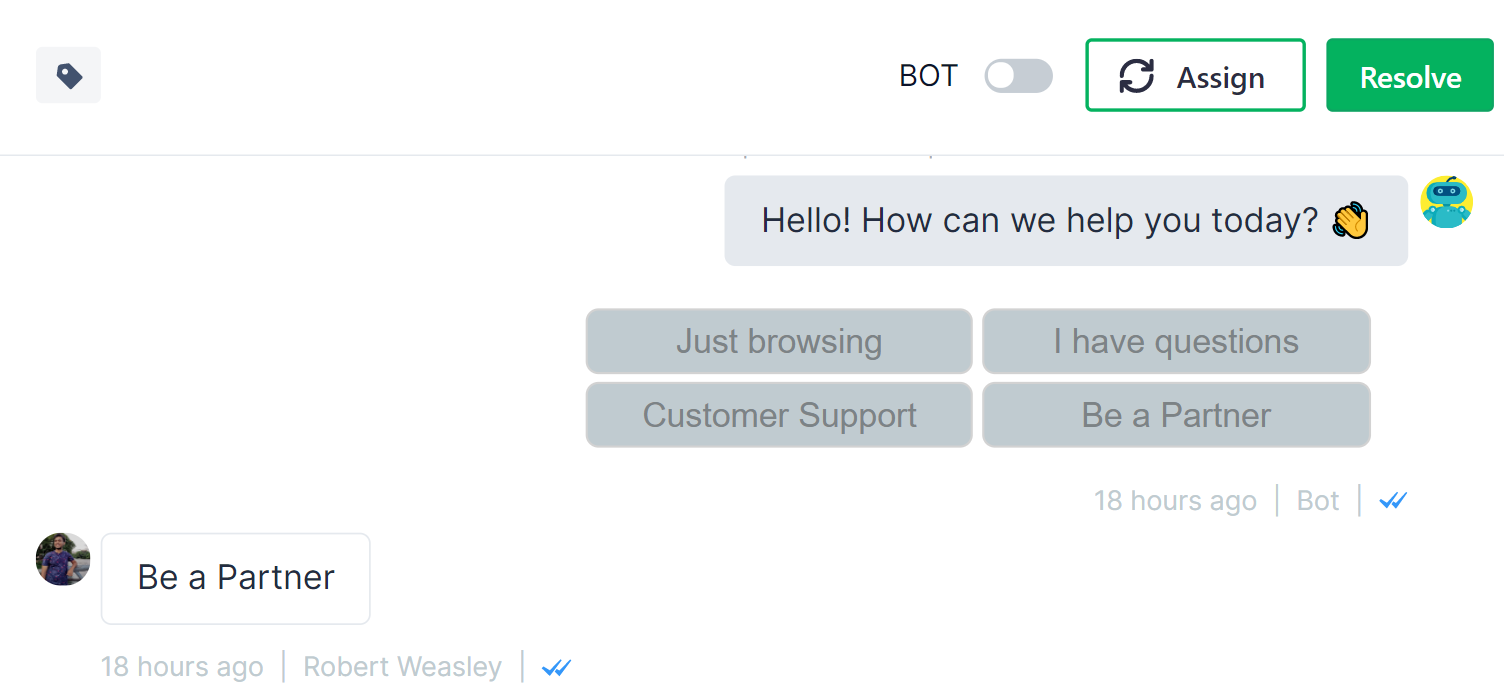
- Click the Assign button at the right-top corner. A new panel will appear on the right.
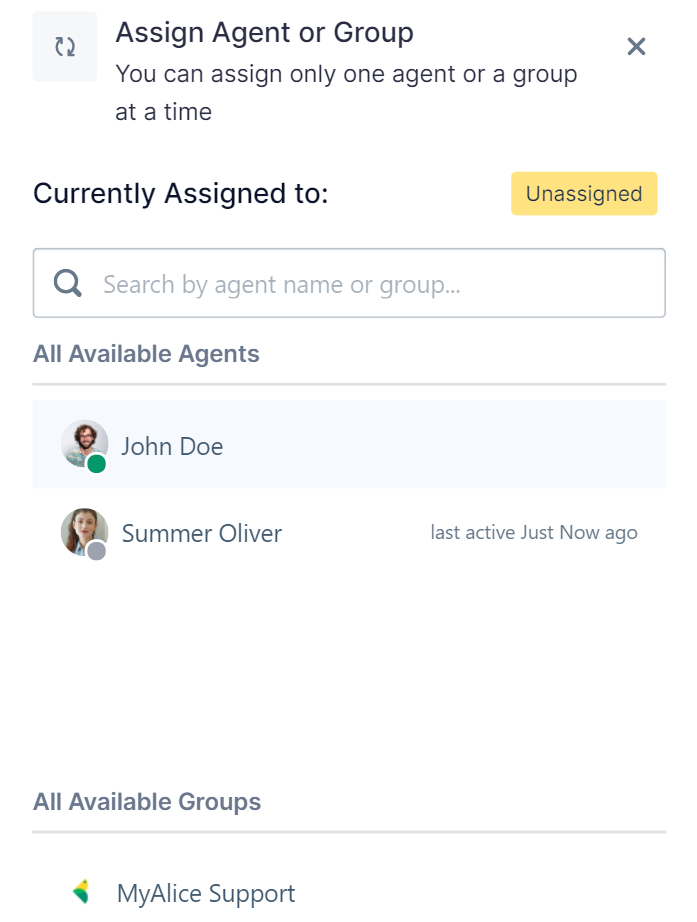
- Choose the desired agent/group from the search results, and select Confirm to assign the ticket accordingly.
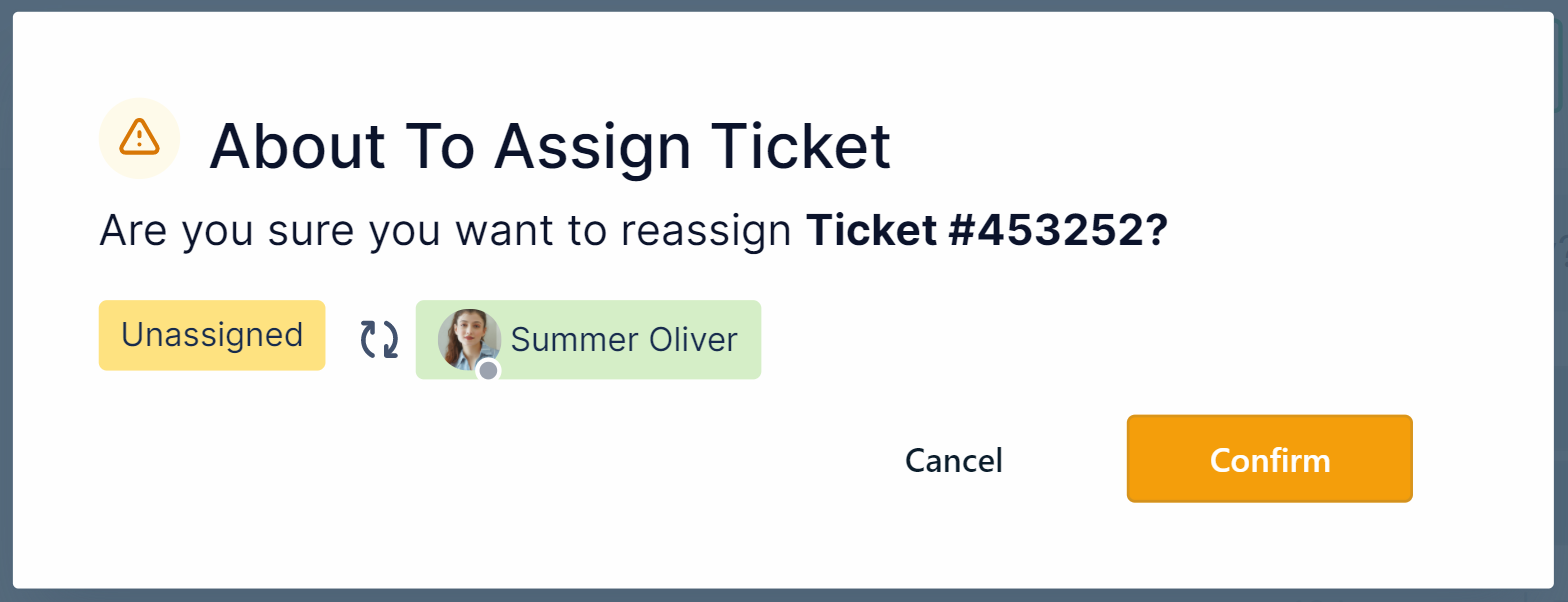
No other agent or chatbot can respond to a ticket while the assigned agent is managing the ticket.
Reassign a Ticket
- Select an assigned pending ticket. Click on the name the ticket is assigned to.

- A panel will appear on the right.
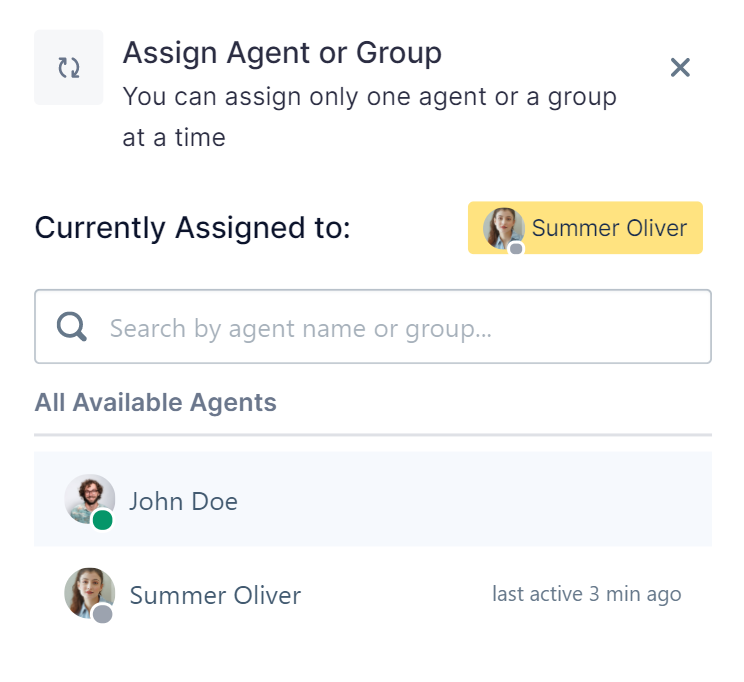
- Choose the desired agent/group from the search results., and select Confirm to reassign the ticket accordingly.