


Update your Subscription
Add or remove a member from your team and update your subscription accordingly.
Say you initially subscribed to Revora for 4 members. But during a month or at the end of it, you need to add another member of your team or remove a member of your team. If you want to add a member, you’ll have to update your subscription and increase the size of your team. If you want to delete a member, you can just remove them from Settings>User Management. This reduction in your team size will be adjusted automatically on your next invoice.
How to Increase your Team Size
- Go to Settings> User Management and click on ‘Add New Member’. You’ll be asked to update your team size.
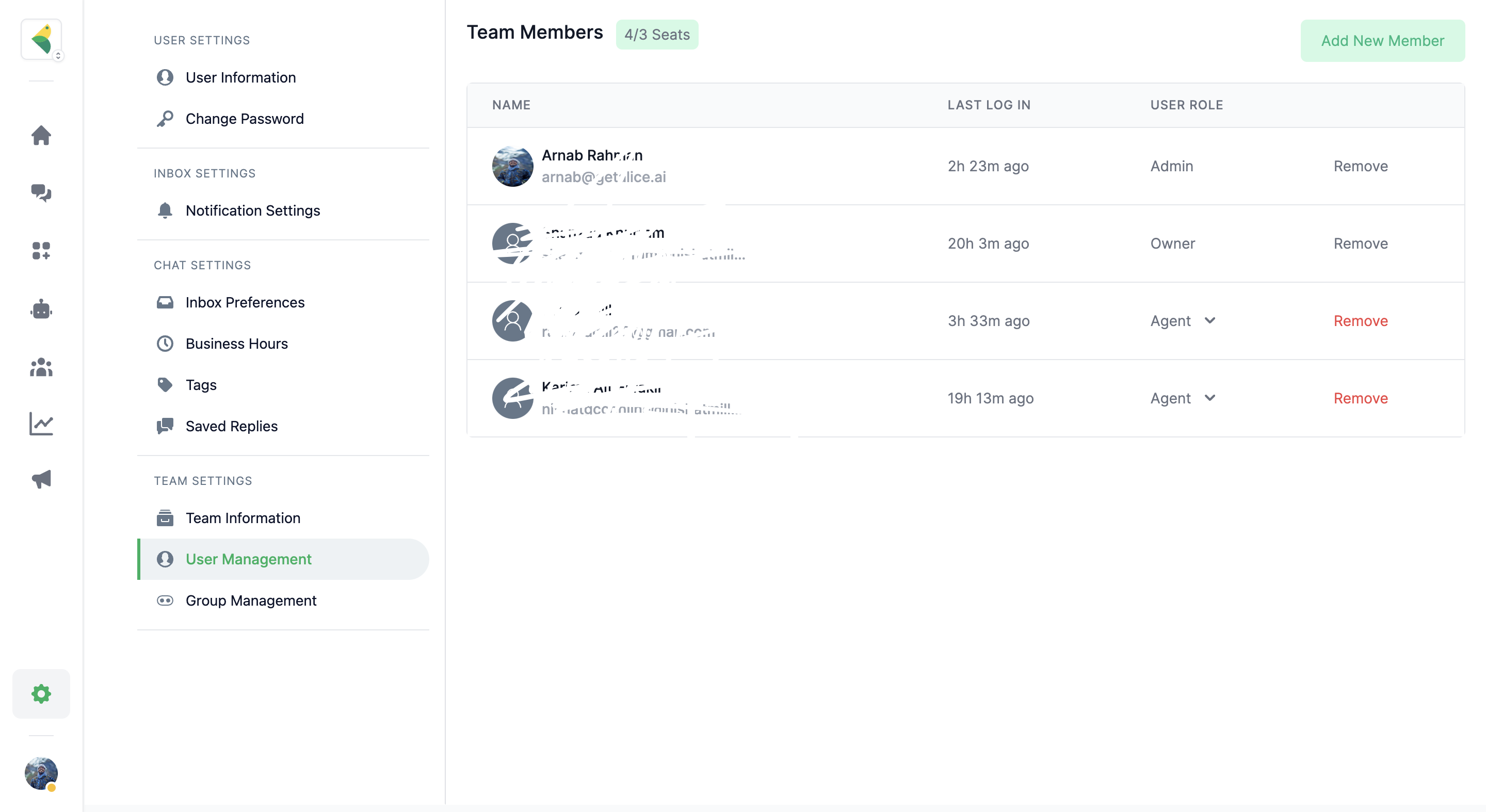
- You can also go to Plan & Billing and click on ‘Update Team Size’
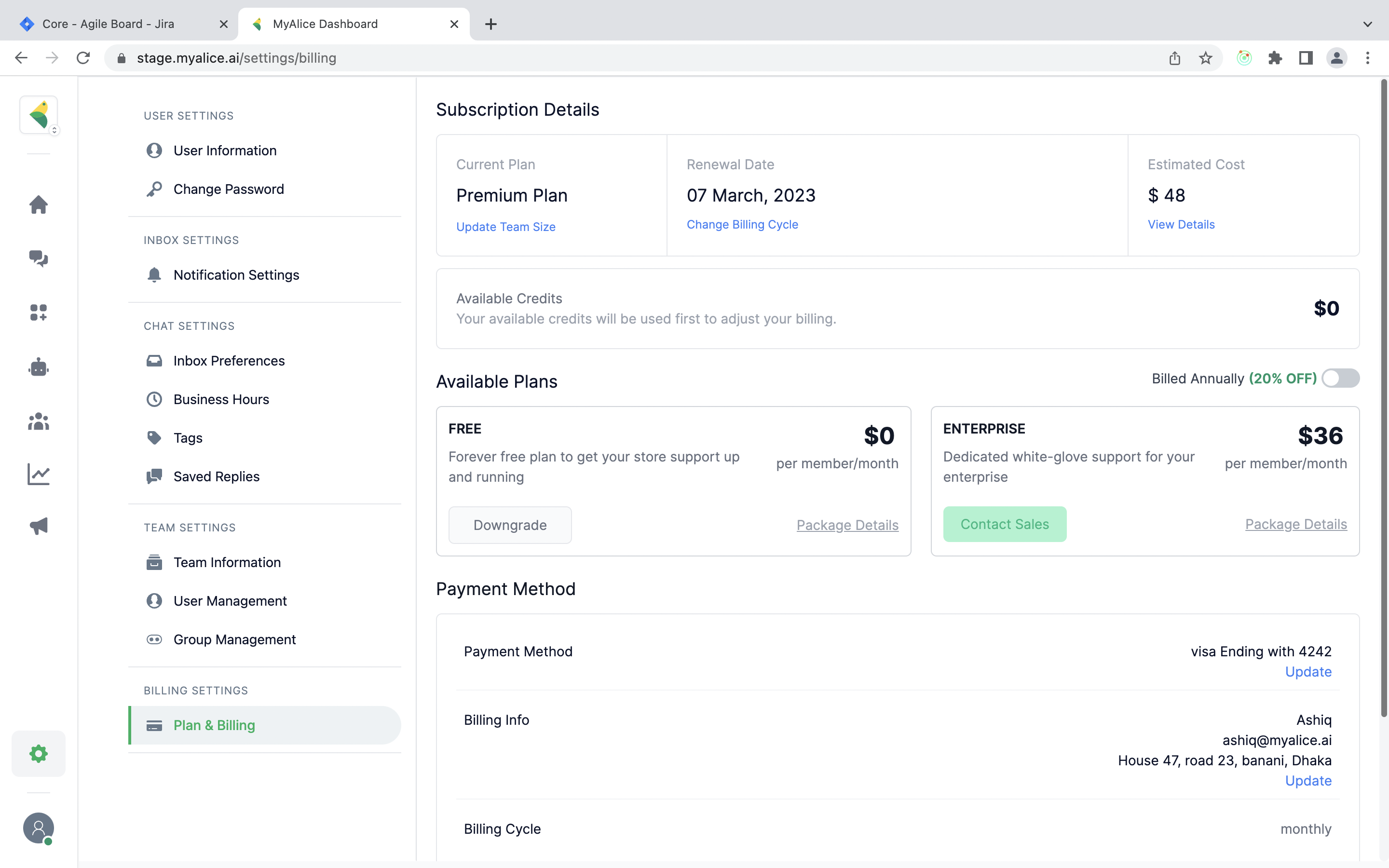
- You’ll land on our Checkout page where it will show your current team size. Click on the + icon to increase your team size. Depending on which plan you’re on, the cost will show accordingly on the right.
- Once done, click on Checkout. Based on your billing cycle, you’ll be charged automatically for the number of days this new member(s) will be a part of your team. For example, if your billing cycle starts from the 1st of each month, and you add a member on the 20th of the month, when you update your team size, you’ll pay for 10 days for that new member.